

How to Test Internet Speed
Learn how to test internet speed, prepare your device, interpret download and upload results, and compare measurements fairly.
Speed testing2 min read
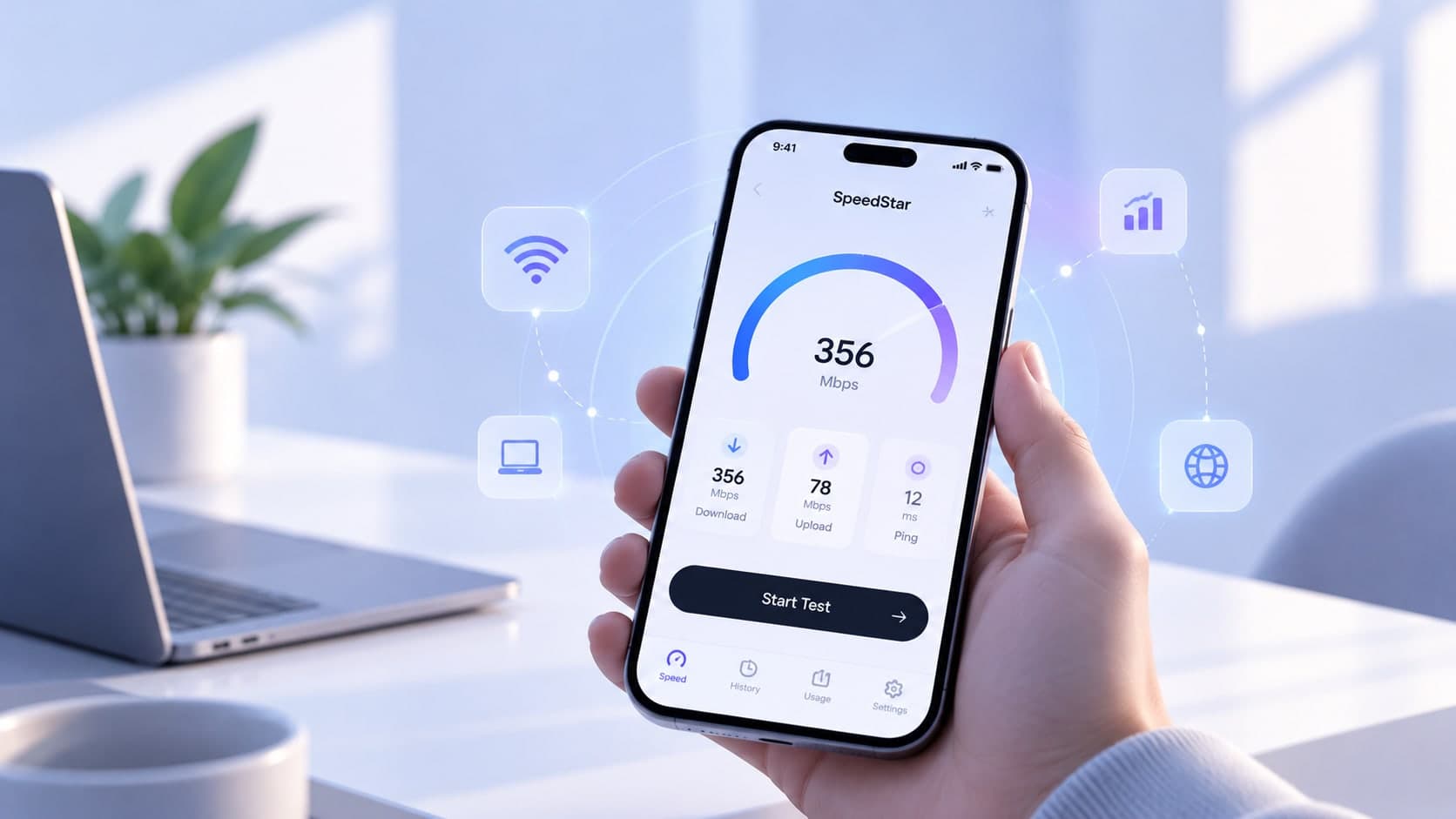
An internet speed test estimates how your connection performs under the conditions at the time of testing. Results can change with Wi-Fi signal, network traffic, device load, and the test destination. A consistent method helps you get a useful measurement instead of chasing every small fluctuation.
Before you begin
Choose a device connected to the network you want to measure. Close large downloads, cloud backups, and other heavy transfers where practical. If you want to assess your everyday Wi-Fi experience, test from the location where you normally use the device. If you want to isolate Wi-Fi from the internet connection, use Ethernet when possible.
Run the test and note the conditions
Open the SpeedStar speed test and start a measurement. Let it complete without switching networks or starting other intensive tasks. Note whether you used Wi-Fi or Ethernet, which device you used, and approximately where and when you tested. Those details make comparisons more meaningful.
Understand the main results
Download speed measures data received from the internet; upload speed measures data sent out. Latency or ping describes round-trip response time to a test destination. Some tools provide additional measures, but availability and methodology can differ. Read the definitions shown by the tool rather than assuming every speed test measures every metric identically.
Repeat when results look unusual
Run a few tests under similar conditions and look for a pattern. To investigate time-of-day changes, repeat at different times while keeping the device and location as consistent as possible. Avoid comparing one Wi-Fi test with one Ethernet test as if only the time changed.
What a speed test cannot tell you alone
A test is a snapshot, not a complete diagnosis of every website, app, or route. A remote server may perform differently from another service, and a good result does not rule out intermittent dropouts. If a particular app is slow, check that service and your local network as well.
Key takeaway
For useful comparisons, keep the device, location, connection type, and test conditions consistent. Look for patterns across repeated measurements rather than treating one result as the whole story.